

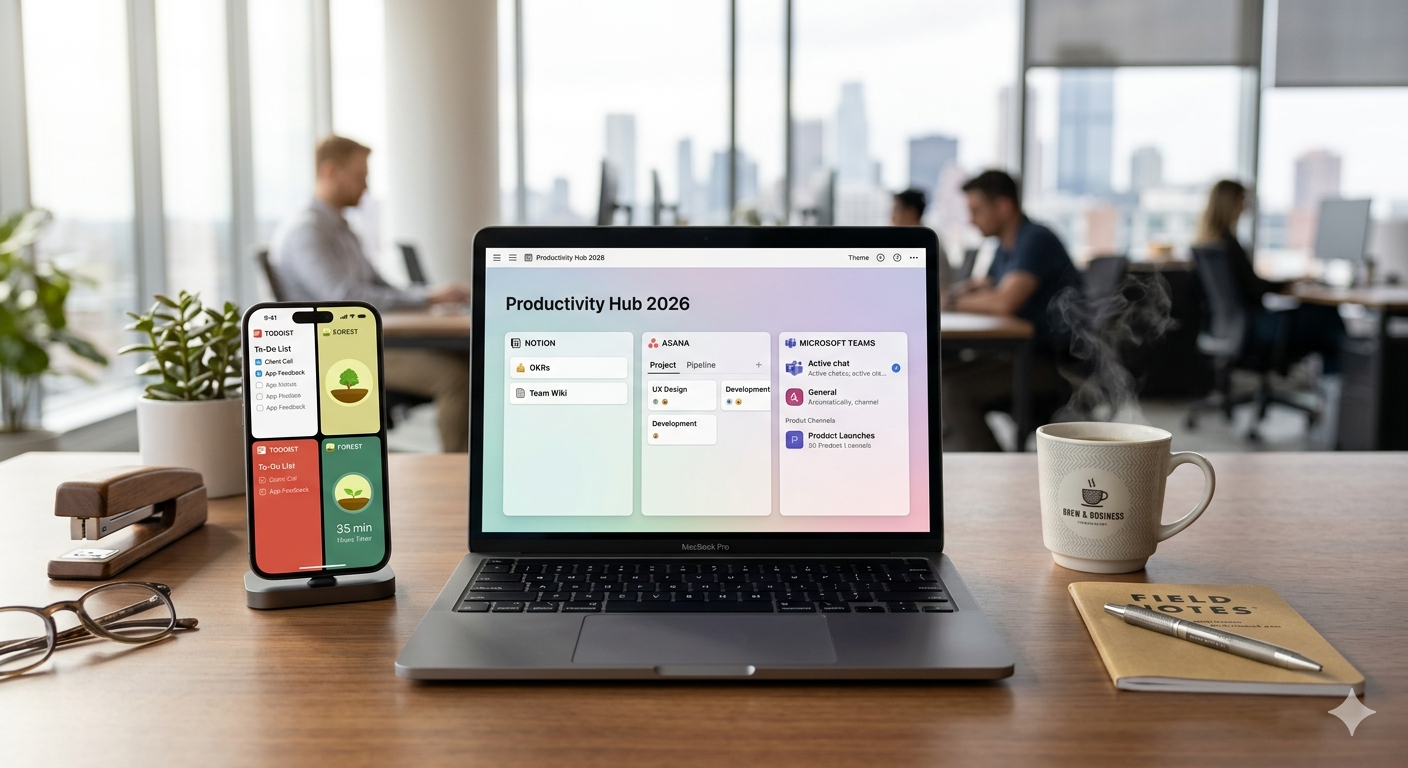
Modern professionals face unprecedented demands on their time and attention, juggling multiple projects, endless communications, and complex workflows that stretch across teams and time zones. Traditional methods of managing work through paper planners and basic email systems simply cannot keep pace with contemporary business complexity. Fortunately, technology has evolved to provide sophisticated solutions that help individuals and teams work smarter rather than harder. The marketplace now offers hundreds of productivity applications promising to revolutionize how you work, but this abundance creates its own challenge as you wade through options trying to identify which tools truly deliver value. The most effective productivity apps share common characteristics including intuitive interfaces that minimize learning curves, robust features that address real workflow needs, and seamless integration with other tools you already use. Understanding which applications excel in specific areas allows you to build a personalized productivity ecosystem that matches your unique work style and business requirements. This comprehensive guide explores the best productivity apps for work and business across multiple categories, helping you make informed decisions that genuinely improve efficiency rather than adding complexity to already crowded digital workflows.
Task Management Apps Among the Best Productivity Apps
Effective task management forms the foundation of productivity, ensuring nothing falls through cracks while providing clarity about priorities and deadlines. Todoist stands out as one of the most versatile task management solutions, offering simple enough functionality for beginners while providing advanced features that satisfy power users. The application allows natural language input where you can type tasks like “meeting with Sarah next Tuesday at two pm” and it automatically sets appropriate dates and times. Projects and sub-projects organize tasks hierarchically, labels add flexible categorization, and priority levels ensure critical items receive appropriate attention. The karma system gamifies productivity by awarding points for completing tasks, providing motivation through tangible progress tracking.
Microsoft To Do integrates seamlessly with other Microsoft products including Outlook, making it ideal for businesses already invested in the Microsoft ecosystem. Tasks sync across all devices, intelligent suggestions surface relevant items based on your habits and patterns, and the My Day feature helps you focus on immediate priorities without overwhelming you with your entire task list. The simple, clean interface removes distractions while customizable lists accommodate different project types and workflow preferences. Sharing capabilities allow collaboration on tasks with colleagues, and integration with Outlook emails lets you convert messages directly into actionable tasks without switching applications.
Asana moves beyond individual task management into project and team coordination, making it particularly valuable for businesses managing complex workflows with multiple stakeholders. The platform visualizes work through various views including lists, boards similar to Kanban systems, timelines for Gantt-style planning, and calendars showing deadline distributions. Custom fields capture information specific to your business processes, automation rules eliminate repetitive manual work, and dependencies ensure tasks happen in proper sequence. Asana’s robust permission system controls access appropriately across different team members and external collaborators, while portfolios provide executives high-level oversight of multiple projects simultaneously without getting buried in operational details.
Communication and Collaboration Tools for Modern Teams
Slack revolutionized workplace communication by organizing conversations into channels based on projects, topics, or teams rather than endless email threads that bury important information. This structure makes finding past discussions simple through powerful search functionality, while keeping relevant stakeholders informed without cluttering everyone’s inbox. Direct messages facilitate quick one-on-one conversations, huddles provide instant audio communication, and Canvas creates collaborative documents directly within Slack. Integration with thousands of other applications brings information from various tools into centralized locations where teams already work, reducing context switching that fragments attention and wastes time.
Microsoft Teams serves similar purposes while providing tighter integration with Office applications, SharePoint, and OneDrive. Video conferencing capabilities rival dedicated platforms, making Teams comprehensive solutions for organizations wanting unified communication, collaboration, and meeting tools. Channels organize team conversations, tabs bring relevant files and applications directly into channel interfaces, and threaded conversations maintain context better than linear chat streams. The breakout rooms feature facilitates small group work during larger meetings, while together mode creates virtual environments that make video calls feel more natural and engaging.
Zoom remains the gold standard for video conferencing despite competition from Teams and Google Meet. Superior audio and video quality, reliable performance even with large participant counts, and intuitive controls make meetings smooth and professional. Virtual backgrounds maintain privacy when working from home, screen sharing with annotation supports effective presentations and collaboration, and recording capabilities create archives for those unable to attend live or for future reference. Webinar features support large-scale events with thousands of participants, while waiting rooms and security controls prevent unauthorized access that plagued early pandemic-era meetings.
Document Creation and Management Solutions
Google Workspace provides comprehensive productivity tools including Docs, Sheets, Slides, and Drive that enable real-time collaboration impossible with traditional desktop software. Multiple users can simultaneously edit documents while seeing each other’s changes instantly, commenting facilitates feedback and discussion without altering original content, and version history tracks all changes with ability to restore previous iterations. Cloud storage through Google Drive ensures access from any device while eliminating email attachments that create version confusion. Shared drives organize team files with appropriate permissions, while integration across Google apps creates seamless workflows from email to calendar to documents.
Microsoft 365 offers Word, Excel, PowerPoint, and OneDrive with similar collaboration capabilities plus decades of feature development that makes these applications incredibly powerful for complex document needs. Co-authoring brings real-time collaboration to Office applications, while desktop versions provide advanced features not available in web-based alternatives. SharePoint integration supports enterprise-level document management with sophisticated workflows, compliance features, and information architecture. The subscription model ensures you always have current versions with latest features and security updates, while generous cloud storage accommodates large file collections and multimedia content.
Notion represents a newer approach combining notes, databases, wikis, and project management into flexible all-in-one workspaces. Pages nest infinitely to create hierarchical information structures, databases store and organize structured information with multiple views, and templates accelerate creating common document types. The block-based editing system makes documents incredibly flexible, supporting everything from simple text to embedded media, code snippets, and linked databases. Teams use Notion as internal wikis documenting processes and institutional knowledge, while individuals leverage it for personal knowledge management. The learning curve is steeper than simpler note-taking apps, but the flexibility rewards investment with customized systems perfectly matching unique workflows.
Time Tracking and Focus Applications for Enhanced Efficiency
RescueTime runs quietly in the background tracking how you spend time across applications and websites, then generates detailed reports showing productivity patterns. The application categorizes activities automatically as productive, neutral, or distracting based on customizable definitions aligned with your work. Detailed analytics reveal when you work most effectively, which applications consume excessive time, and how daily habits compare against your productivity goals. FocusTime blocks distracting websites during designated periods, helping you maintain concentration on important work. Understanding where time actually goes rather than where you think it goes often reveals surprising waste and opportunities for improvement.
Toggl Track provides manual time tracking that lets you capture billable hours, understand project time investments, and identify efficiency bottlenecks. The simple interface makes starting and stopping timers effortless, while project and client tags organize time entries for accurate reporting and billing. Browser extensions and mobile apps ensure you can track time regardless of where you work, and integrations with project management tools automatically link time to specific tasks. Detailed reports show time distributions across projects, clients, and team members, supporting data-driven decisions about resource allocation and project profitability.
Forest gamifies focus time through virtual tree growing that rewards sustained concentration while making distraction visible through dead trees. Starting focus sessions plants seeds that grow into trees if you resist using your phone, while succumbing to distraction kills your tree. The visual forest of your productivity creates satisfying representations of focused work, and the application partners with real tree-planting organizations so your virtual achievements fund actual environmental impact. While seemingly simple, the psychological incentive of not wanting to kill your tree proves surprisingly effective at reducing phone checking during work sessions.
Project Management Platforms for Complex Workflows

Monday.com provides highly visual project management with customizable boards that adapt to virtually any workflow. Color-coded status columns show project health at glance, timeline views reveal scheduling and dependencies, and automation eliminates repetitive manual updates. The platform scales from small teams to enterprise deployments, and templates for common use cases from marketing campaigns to software development accelerate implementation. Dashboards aggregate data across multiple boards, giving leaders comprehensive oversight while team members focus on their specific responsibilities. Integrations with popular business tools create unified ecosystems where information flows automatically between systems.
Trello’s card and board system based on Kanban methodology offers intuitive visual organization that requires minimal training. Cards represent individual tasks or items, lists represent stages or categories, and boards represent projects or workflows. Dragging cards between lists updates status instantly, while labels, due dates, checklists, and attachments add necessary detail. Power-ups extend functionality by integrating calendars, voting, custom fields, and connections to other applications. The simplicity that makes Trello accessible also limits its suitability for complex enterprise workflows, but for straightforward project tracking it remains among the best productivity apps for work and business.
Basecamp takes an opinionated approach to project management, providing everything teams need in structured ways rather than infinite customization. Message boards organize discussions by topic, to-do lists track tasks, schedules show deadlines and milestones, docs and files centralize reference materials, and automatic check-ins solicit regular updates from team members. The flat pricing model charges per organization rather than per user, making it economical for larger teams. Basecamp’s philosophy emphasizes asynchronous communication over constant real-time interaction, supporting focused work by reducing meeting overload and notification interruptions that fragment attention.
Note-Taking and Knowledge Management Applications
Evernote pioneered digital note-taking and remains powerful for capturing, organizing, and retrieving information across multiple formats. Web clipper browser extensions save articles, images, and entire pages for later reference, while optical character recognition makes text within images and PDFs searchable. Notebooks and tags create flexible organizational systems, templates standardize note formats for recurring needs, and reminders ensure important information surfaces when needed. Presentation mode transforms notes into shareable formats, and collaboration features allow teams to build shared knowledge repositories. Premium tiers add offline access, increased upload capacity, and integration with business applications.
OneNote provides Microsoft’s alternative with freeform canvas approaches that mimic physical notebooks rather than linear document structures. Pages can contain typed text, handwritten notes using stylus input, embedded files, screen clippings, and audio recordings positioned anywhere on infinite canvas space. Section tabs and page hierarchies organize content, while powerful search finds information across your entire OneNote universe. Integration with other Microsoft applications creates workflows like sending Outlook emails to OneNote or embedding Excel spreadsheets, and collaboration features support team notebooks accessible to designated members.
Roam Research and Obsidian represent newer approaches emphasizing networked thought through bidirectional linking between notes. Rather than hierarchical folder structures, these applications encourage connecting related ideas regardless of where they reside in your note system. Backlinks show what other notes reference current topics, graph views visualize relationship networks between concepts, and daily notes create temporal organization complementing conceptual connections. These tools excel for researchers, writers, and knowledge workers building complex interconnected understanding rather than simple reference collections. The learning curve exceeds simpler note apps, but advocates claim the networked approach fundamentally improves thinking and creativity.
Email and Calendar Management for Better Organization
Superhuman reimagines email with speed and efficiency as primary design goals. Keyboard shortcuts enable processing messages at remarkable pace, scheduled sending delivers emails at optimal times, read status shows when recipients open messages, and follow-up reminders ensure nothing gets forgotten. The application splits inboxes into categories so you can batch similar messages, and social media information about senders provides context before replying. Superhuman costs significantly more than standard email clients, targeting professionals who consider time saved worth premium pricing. The onboarding includes personal training ensuring you leverage all features rather than discovering them gradually.
SaneBox works with existing email providers rather than replacing them, using artificial intelligence to filter messages by importance. Unimportant emails get moved to separate folders processed in batches rather than interrupting throughout the day, while truly important messages remain in primary inboxes. SaneBlackHole unsubscribes from unwanted senders, SaneSnooze temporarily removes messages that return when you can address them, and SaneReminders follow up on emails requiring responses. The service learns from your behavior, continuously improving its understanding of what matters to you personally.
Calendly eliminates email tennis when scheduling meetings by sharing your availability and letting others book appropriate times. Connect your existing calendars so Calendly knows your actual availability, set buffer times between meetings to prevent back-to-back scheduling, and create different meeting types with appropriate durations and settings. Automated reminders reduce no-shows, timezone intelligence handles global scheduling automatically, and integrations with video conferencing platforms add meeting links automatically. Premium features include team scheduling, routing based on round-robin or priority rules, and payment collection for paid appointments.
File Storage and Sharing Solutions for Business Needs
Dropbox remains synonymous with cloud storage despite competition from tech giants. File synchronization works flawlessly across devices, selective sync saves local storage by keeping some files cloud-only, and Smart Sync provides access to all files while downloading only those you actually open. Version history recovers accidentally deleted or modified files, while file recovery protects against ransomware and other threats. Dropbox Paper provides collaborative document creation, and integrations bring functionality from hundreds of other applications directly into Dropbox interfaces. Business plans add advanced security, administration controls, and unlimited storage scaling with organizational needs.
Box focuses specifically on enterprise needs with sophisticated security, compliance certifications, and administrative controls that meet corporate IT requirements. Granular permissions control exactly who can access, edit, download, or share specific files and folders, while detailed activity logs track all interactions for audit and compliance purposes. Workflow automation routes documents through approval processes, e-signature integration handles contracts without external tools, and metadata tagging creates sophisticated organizational systems. Box integrates deeply with enterprise applications including Salesforce, NetSuite, and Microsoft 365, creating unified information ecosystems.
OneDrive provides Microsoft’s cloud storage tightly integrated with Windows and Office applications. File Explorer integration makes OneDrive feel like natural extension of local storage, while seamless Office integration enables opening, editing, and saving documents directly to cloud without explicit uploads. Personal vault adds extra security for sensitive files through additional authentication, while known folder backup automatically protects desktop, documents, and pictures folders. Microsoft 365 subscriptions include generous OneDrive storage, making it economical for users already paying for Office applications.
Automation Tools That Multiply Productivity
Zapier connects thousands of applications through conditional workflows called Zaps that automate repetitive tasks. When specific triggers occur in one application, Zapier executes designated actions in other applications without requiring coding knowledge. For example, new Typeform survey responses might automatically create Trello cards, add contacts to Mailchimp lists, and send Slack notifications. Multi-step Zaps create sophisticated workflows, filters ensure actions only execute under specific conditions, and formatters transform data appropriately between applications. Zapier dramatically reduces time spent on manual data entry and routine transfers between disconnected systems.
IFTTT takes similar approaches with simpler interface focused on straightforward if-this-then-that logic. The service works particularly well for personal productivity use cases and smart home integration alongside business applications. Applets created by other users provide starting points you can customize, while creating original applets requires only selecting triggers, actions, and any necessary filters. The free tier supports limited applets sufficient for many users, while paid plans remove restrictions and add premium application access.
Make (formerly Integromant) provides more sophisticated automation than Zapier with visual workflow builders showing exactly how data flows between applications. The scenario editor lets you design complex multi-branch workflows with error handling, data transformation, and conditional logic. Built-in scheduling runs automations at specific times regardless of external triggers, and data stores maintain information between scenario executions. While steeper learning curves may intimidate beginners, advanced users appreciate the power and flexibility for building truly sophisticated business process automation.
FAQs
Are free versions of productivity apps sufficient for business use?
Free tiers often provide adequate functionality for individuals or small teams just starting with productivity tools. However, businesses typically need paid plans for features like advanced collaboration, administration controls, priority support, and higher usage limits. Evaluate free versions first to ensure applications fit your needs before committing to paid subscriptions.
How many productivity apps should I use simultaneously?
Focus on core applications that address your primary needs rather than accumulating dozens of tools that create complexity and integration challenges. Most professionals work effectively with five to ten applications covering task management, communication, document creation, calendar, and specialized tools for their particular roles. Ensure chosen applications integrate well to create cohesive ecosystems rather than disconnected silos.
What should I consider when choosing productivity apps for my team?
Prioritize applications that team members will actually adopt rather than the most feature-rich options that overwhelm users. Consider existing tool ecosystems to ensure compatibility, evaluate collaboration features that support your workflows, and verify that security and compliance meet your industry requirements. Free trials let teams test applications before financial commitments.
How can I measure whether productivity apps actually improve efficiency?
Track specific metrics before and after implementing tools, such as project completion times, meeting frequency and duration, email volume, or customer response times. Time tracking applications provide objective data about how work hours distribute across activities. Qualitative feedback from team members about reduced frustration and improved workflows also indicates success.
Should small businesses invest in premium productivity tools?
Premium tools often deliver returns exceeding their costs through time savings, reduced errors, and improved output quality. Calculate potential savings by estimating hours saved weekly and multiplying by labor costs. Even modest time savings often justify subscription expenses, particularly for tools used daily by multiple team members.
Conclusion
Selecting the best productivity apps for work and business transforms how you and your team accomplish daily tasks, manage complex projects, and collaborate effectively across distances and time zones. The applications explored in this guide represent proven solutions that thousands of professionals rely on to maintain focus, organize information, communicate efficiently, and automate repetitive work that consumes time better spent on high-value activities. Task management tools like Todoist and Asana ensure nothing gets forgotten while providing clarity about priorities and deadlines. Communication platforms including Slack and Microsoft Teams streamline conversations and reduce email overload that buries important information. Document creation applications from Google Workspace and Microsoft 365 enable real-time collaboration that accelerates work and eliminates version confusion. Time tracking solutions reveal where hours actually go rather than where you assume they go, supporting data-driven improvements. Project management platforms coordinate complex workflows across teams and stakeholders, while note-taking applications capture and organize the information that fuels knowledge work. Email and calendar tools reduce scheduling friction and help you process communications efficiently, and cloud storage ensures access to files anywhere while maintaining proper backups. Automation platforms multiply your effectiveness by handling routine transfers and processes without manual intervention. The key to productivity app success lies not in adopting every available tool but in thoughtfully selecting applications that genuinely address your specific needs and integrate smoothly into cohesive ecosystems. Start with one or two core applications, master their features thoroughly, then expand your toolkit gradually as needs evolve and integration opportunities become clear. Remember that tools themselves provide no value until you actually use them consistently and develop work habits that leverage their capabilities fully. Invest time in proper setup, customization, and learning to ensure your productivity app investments deliver the efficiency gains and business results they promise.